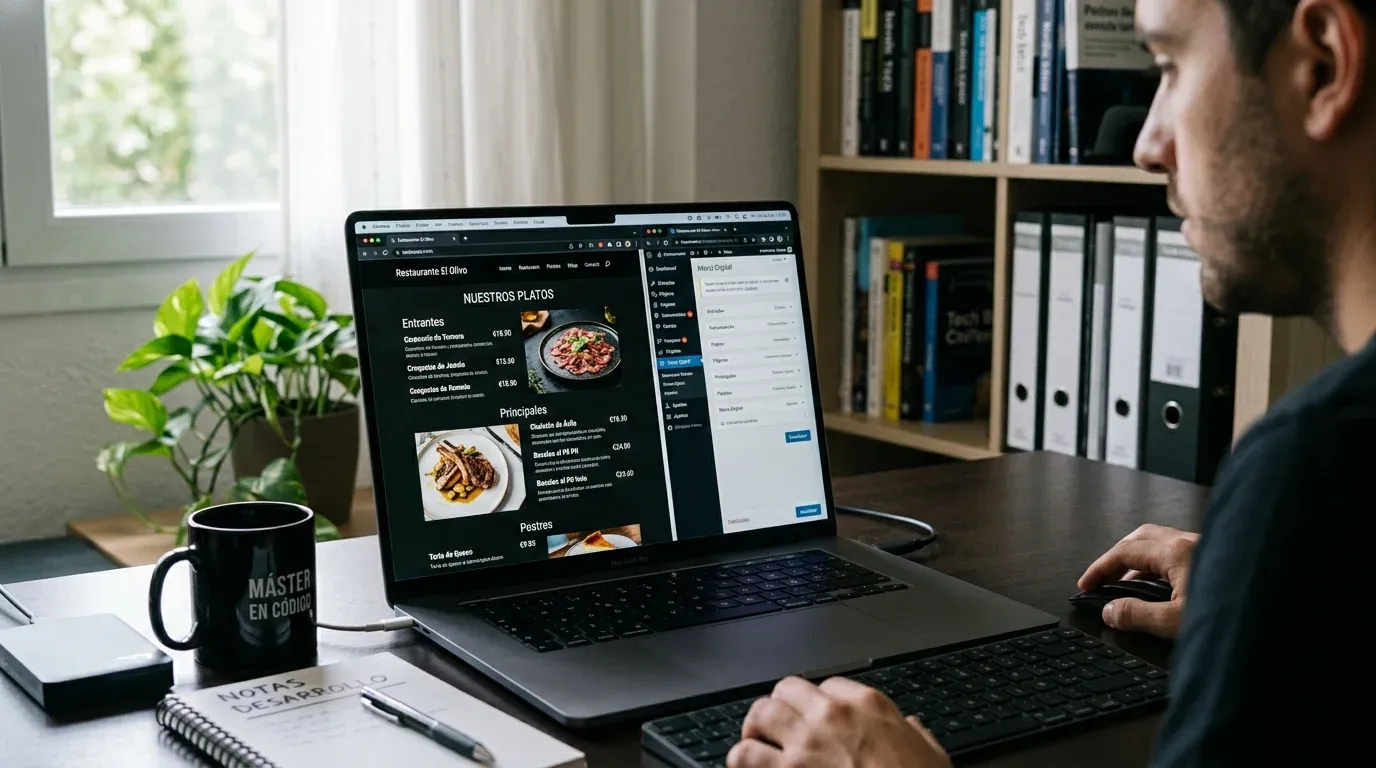
Most restaurants already have a website on WordPress. The usual problem is that the digital menu lives on a separate platform, with a different URL, a design that doesn't fit, and a fragmented user experience: the customer leaves your website to view the menu and loses the thread.
There's a cleaner solution: have the menu live within your WordPress, on the same page, with the same design and without the customer having to go anywhere else.
This is how you do it with Qaproveche.
What you need before you start
- An active WordPress website (version 5.8 or higher)
- A Qaproveche account with your menu configured (works with any plan from Business onwards)
- The Qaproveche plugin, which you can request from your dashboard or directly via hola@qaproveche.com
The complete process takes less than 10 minutes the first time.
Step 1: install the plugin
From the WordPress dashboard, go to Plugins → Add new → Upload plugin. Select the Qaproveche plugin .zip file and click Install now. Activate it when the installation is complete.
You don't need to configure anything else in WordPress. The plugin installs and works.
Step 2: copy your restaurant token
Go into your Qaproveche dashboard, navigate to the WordPress section and copy your restaurant token. It's a unique text string that identifies your establishment.
Step 3: add the shortcode to your page
Go to the WordPress page where you want to display the menu. You can use the block editor (Gutenberg), AVADA Fusion Builder or any other compatible page builder.
The basic shortcode is:
[qaproveche token="tu_token_aqui"]
That shortcode automatically displays the active menu according to the configured schedule. If it's 13:00, it shows the lunch menu. If it's 20:00, the dinner menu. Without manual intervention.
Additional shortcode options
If you want to always show all available menus, regardless of the schedule:
[qaproveche token="tu_token" menu="all"]
To apply a specific visual style:
[qaproveche token="tu_token" style="elegant"]
The available styles are: modern, minimal, elegant y classic. If you don't specify any, the one you've configured in the Qaproveche design panel is applied.
How it works with AVADA Fusion Builder
If your website uses AVADA, the plugin adds a native element in Fusion Builder. You don't have to use shortcodes: you drag the "Qaproveche Menu" element to your page, paste the token in the corresponding field and select the style. The preview appears directly in the editor.
Frequently asked questions
Does the menu inherit the styles from my WordPress theme? The menu uses its own styles to guarantee visual consistency across all devices. If you want fine adjustments, you can add custom CSS from the Qaproveche design panel.
Does it affect my website's performance? Not significantly. The plugin uses intelligent 5-minute caching and loads menu resources asynchronously. Your website's PageSpeed is not affected.
Does it work on mobile? Yes. The menu is designed to work perfectly on any device, from initial configuration to the end customer experience.
Can I have it on multiple pages at once? Yes. You can use the shortcode on as many pages as you need with the same token.
Does your restaurant still not have a digital menu?
Try Q'aproveche free — QR menu, bookings, smart reviews and AI Waiter. One platform. No lock-in.
Start free →