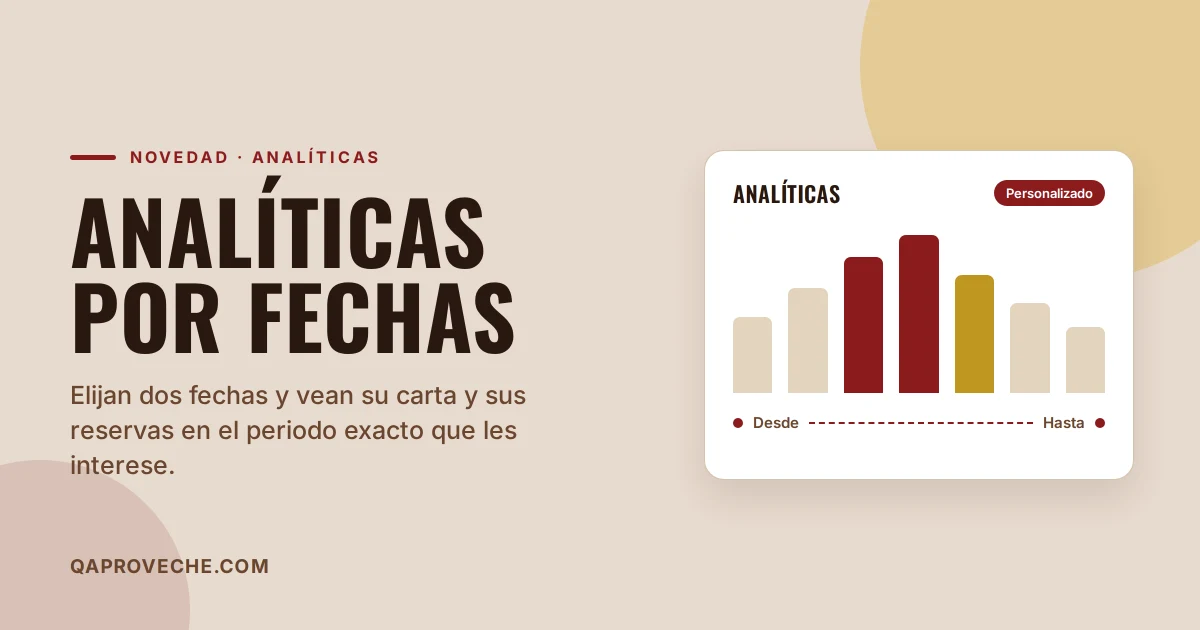
Q'aproveche's analytics already showed you how your digital menu and bookings were performing over the last 7, 30 or 90 days. These periods work for day-to-day use, but they're not always what you need to look at. Now you can choose two dates, a 'from' and a 'to', and see the data for exactly that period.
Where to find it
In Analytics, next to the 7, 30 and 90-day buttons, there's a new one: 'Custom'. Tap it and two calendars open—start date and end date, both included. It's in both tabs, Digital menu and Bookings, and the period you choose stays the same when you switch between them.
What it's for
Choosing dates manually lets you answer questions you used to guess at:
- A bank holiday or festival. Look at just those days and compare them with next year or a normal weekend.
- A promotion. If you advertised a special menu from the 3rd to the 12th, see exactly what happened on those dates.
- A full month. From the 1st to the 30th, to match what you send to your accountant.
- Before and after a change. You changed the menu or raised a price on a specific day; compare the two weeks around it.
Below the selector you always see the period applied—for example, '3/10/2026 to 12/10/2026 · 10 days'—so there's no doubt what you're looking at.
Comparison that makes sense
Each figure is compared with the previous period of the same length. If you look at 10 days, it compares with the 10 days just before; if you look at a month, with the month before. So the 'up' or 'down' you see next to each number means what it looks like. And if the period crosses from one year to another, the graph adds the year to the dates so it reads clearly.
You have it now
Nothing to activate: go to Analytics and tap 'Custom'. If you don't use Q'aproveche yet, you can create a free account at qaproveche.com and see it inside. No credit card needed.
Does your restaurant still not have a digital menu?
Try Q'aproveche free — QR menu, bookings, smart reviews and AI Waiter. One platform. No lock-in.
Start free →