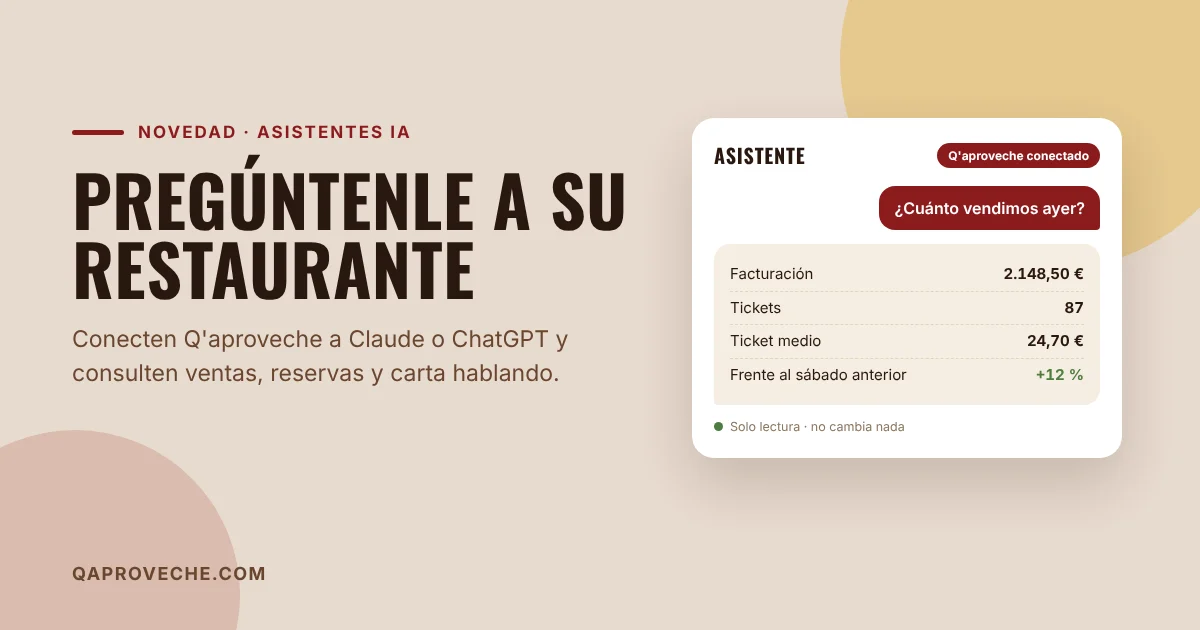
Finding out yesterday's sales, tonight's bookings or which dishes aren't selling usually means logging into the dashboard, finding the right screen and doing some maths. From today, you can ask your AI assistant directly, in your own words: Q'aproveche can connect to Claude and ChatGPT.
What you can ask
Once connected, the assistant checks your restaurant's data and answers instantly. Some examples:
- «How much did we sell yesterday and how does it compare to last Saturday?»
- «What bookings do we have tonight? Any tables for more than six?»
- «Which dishes sold the least this month? Are there any that have never been ordered?»
- «Which dishes are gluten-free and dairy-free?»
- «A summary of negative reviews this week.»
- «What times do people look at the menu most?»
Beyond answering, the assistant can compare periods, do calculations, prepare a summary for your team or explain a trend. You ask and it works with your real data.
What data it can access
- Your complete menu: dishes, prices, descriptions, allergens, menu times and translations.
- Your bookings: the list for each day and the period summary, with covers, cancellations and no-shows.
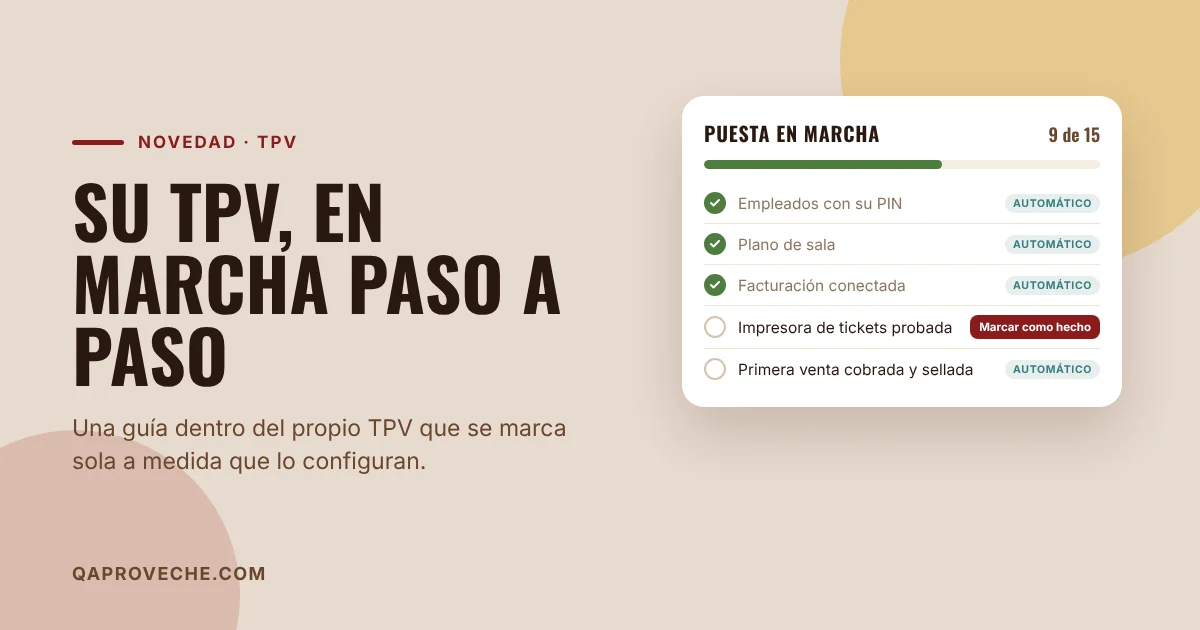
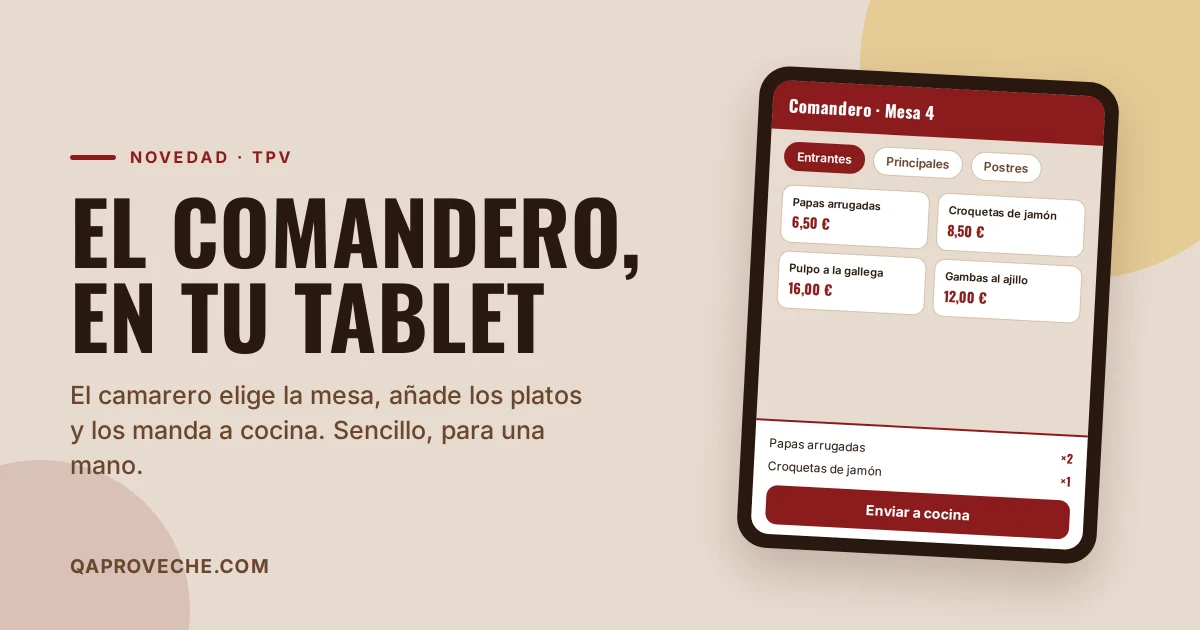
- Your POS, if you have one: sales by day, hour, employee or till; receipts; best and worst-selling dishes, and till reconciliations.
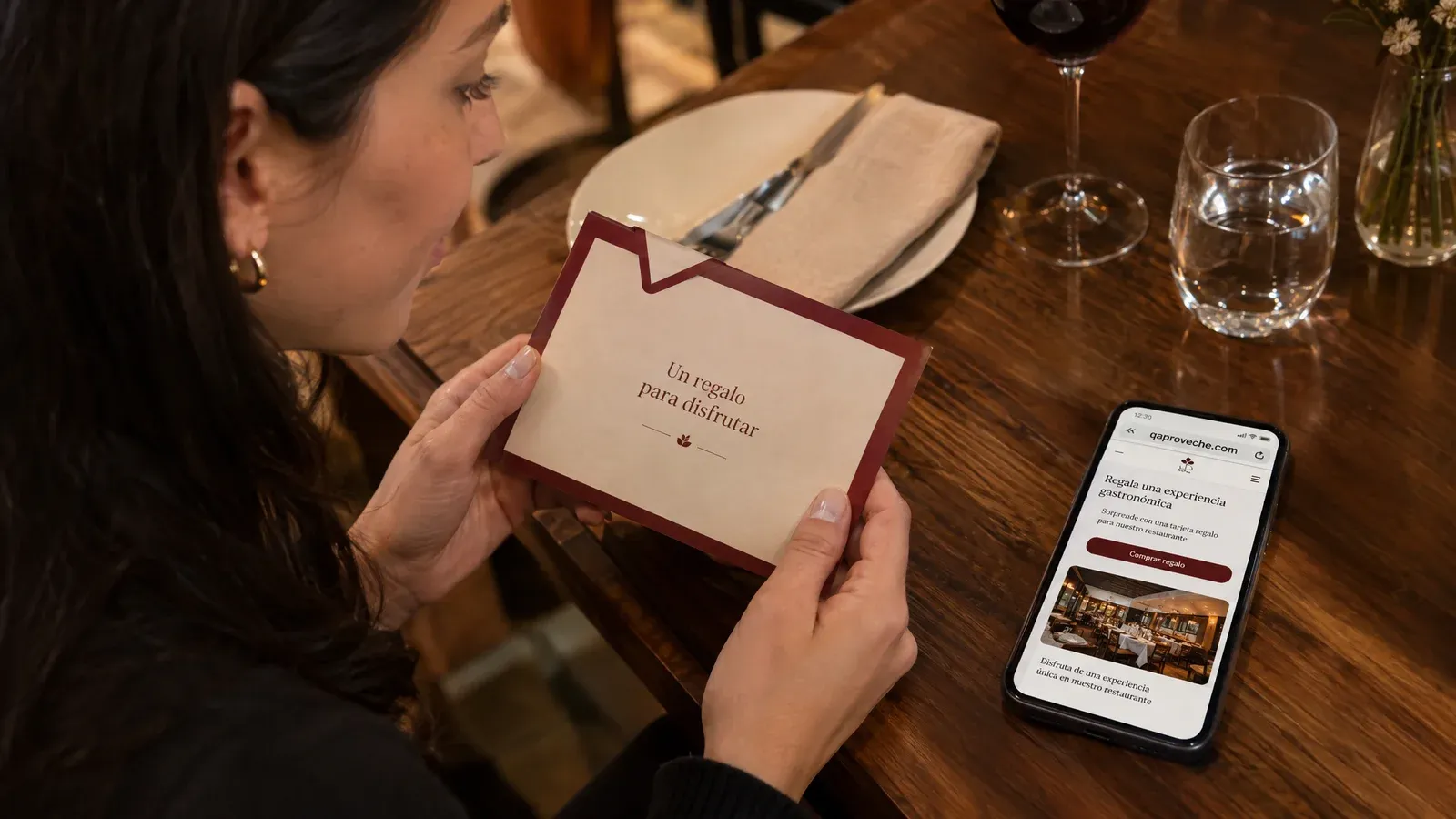
- And more: orders from the menu, customer reviews, events, gift cards and digital menu visits.
Read-only access
The connection is read-only. The assistant can check data, but cannot change prices, cancel a booking or touch a payment. Plus:
- To connect it, you must enter your restaurant account email and password, always. No one can connect it from a tablet in the restaurant using an open session.
- Your customers' phone numbers and emails are not sent, unless you explicitly request it.
- In your dashboard, under AI Assistants, you can see which apps are connected and every query they've made, and you can revoke access with a button whenever you want.
How to connect it
Go to your Q'aproveche dashboard, to AI Assistants. There you'll find the connector address, qaproveche.com/mcp, with steps for each assistant:
- In Claude: Settings → Connectors → Add custom connector, and paste the address.
- In ChatGPT: Settings → Apps and connectors, and create one with the same address. Depending on your ChatGPT plan, you may need to enable developer mode first.
When you click «Connect» a Q'aproveche screen opens explaining what will be shared. Enter your email and password, click «Allow access» and you're done. It also works with any other assistant compatible with MCP, the open standard for connecting AI assistants to applications.
Who can use it
The connector is included in Q'aproveche's paid plans, from the Pro plan, at no extra cost. If you already have one, go to AI Assistants and connect it today. If you're on the Free plan, you can upgrade from Billing or check out the plans at qaproveche.com/precios.
Does your restaurant still not have a digital menu?
Try Q'aproveche free — QR menu, bookings, smart reviews and AI Waiter. One platform. No lock-in.
Start free →