Setting up a POS involves many small things: registering employees, drawing the floor plan, connecting invoicing, testing the printer, opening the first till… Anything left undone appears right at the first service, with the dining room full. That's why Q'aproveche's POS now comes with its own guide: Setup.
Where to find it
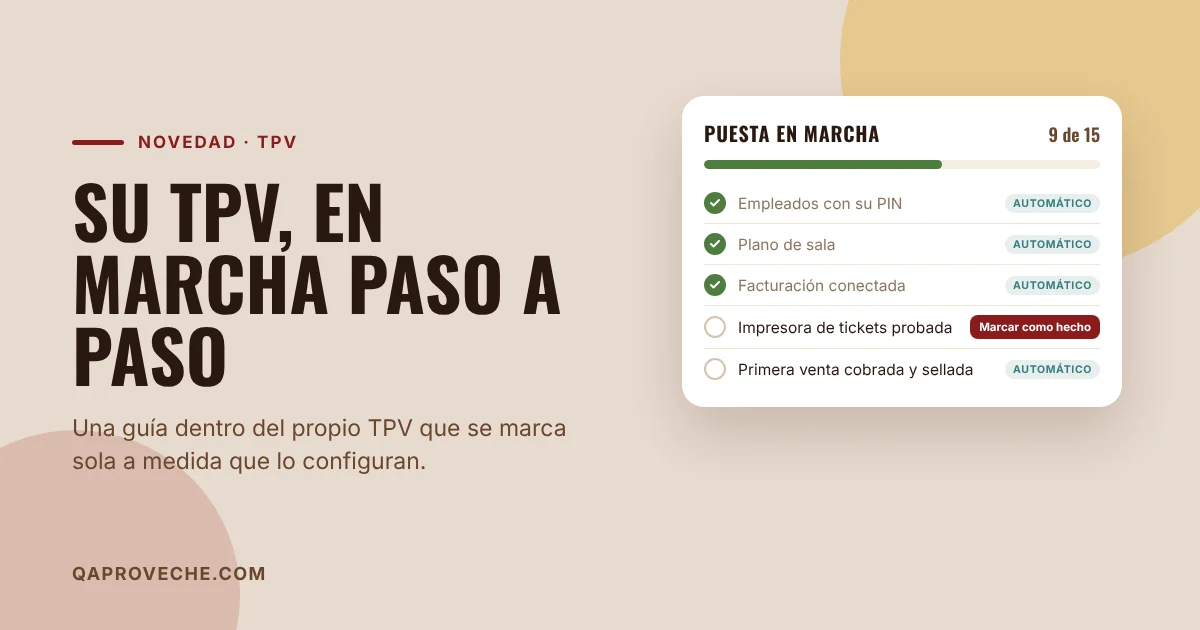
The first time they enter the POS from their panel, the guide opens automatically. After that they always have it in the menu, under POS → Setup. While any steps remain pending, managers also see a notice at the top of the POS, like «Setup: 9 of 15 steps done · Continue».
Fifteen steps, in order of the day
The guide follows the order in which an installation is actually done, in four blocks:
- Prepare: the menu with prices, the restaurant's time zone and the connection to invoicing (Veri*Factu via Kraakup).
- Configure the POS: points of sale, employees with their PIN, floor plan, receipt printer and kitchen display.
- Full test: open the till, process a first sale, check the receipt QR with your phone, correct a payment and close the till.
- Your team: explain to those who will use it how it works and test exiting POS mode.
Each step explains what to do and has a button that takes you directly to the screen where you do it.
It ticks itself off
Most steps don't need to be ticked manually: the POS checks them against its own data. As soon as there's a manager registered, tables on the floor plan, invoicing connected, a till open or a sale sealed, the step shows as done. Only those the system can't see are confirmed manually, like whether the printer outputs the QR correctly or whether the team knows how it works. A manager ticks those, and it's recorded who did it and when.
A genuine test, and compliant
Sales sealed in Veri*Factu are real: they reach the Tax Authority and aren't deleted. That's why the guide suggests doing the test with a genuine, low-value item and cancelling it at the end. This also tests something new in the POS: correcting a payment. From Movements, with a manager's PIN and while the till is still open, you can change the payment method, if you pressed «Cash» when it was card, or cancel the payment. If the receipt was sealed, a corrective invoice is automatically issued with its own QR, ready to print.
What to tell your team
The guide includes a table showing who can do what. Opening tables, ordering, sending to the kitchen and taking payment are done with each employee's PIN. Discounts, removing a dish already in the kitchen, cancelling an account, withdrawing cash or correcting a payment require a manager's PIN. And exiting POS mode requires the owner's password, so no one changes prices from the bar.
At the end there's a section on «If something goes wrong» with what usually happens in the first few days: the till closed when you go to take payment, a sale pending sealing, a payment with the wrong payment method or a forgotten PIN.
They already have it
If your restaurant has the POS, the guide is already active: you don't need to do anything. If you don't have it yet and want to see it, write to us or visit qaproveche.com.
Does your restaurant still not have a digital menu?
Try Q'aproveche free — QR menu, bookings, smart reviews and AI Waiter. One platform. No lock-in.
Start free →